 SidebySpeak
 Blog
Video Call Translator: How to Translate Any Video Call in 2026
Pick a video call translator by the call you're on: SidebySpeak for Zoom, Google Meet and Teams in your browser, built-in platform features, and phone apps for WhatsApp, FaceTime and phone calls.

The right video call translator depends on the call you're on, because each kind of call carries its audio somewhere different. A browser meeting plays in a tab, a phone call runs through the dialer, and a FaceTime or WhatsApp call stays inside its own app. A translator has to hear that audio to translate it, so pick by call type:
- Zoom, Google Meet or Microsoft Teams in Chrome or Edge: SidebySpeak. It gives you live bilingual captions with no bot and no host setup, and it translates what you say, too.
- A meeting where the host already pays for translation: use the platform's built-in feature.
- Phone, WhatsApp or FaceTime calls: your phone's built-in Live Translation, or a call-translation app.
A video call translator turns what people say on a call into your language as they speak, as captions, a translated voice, or both. The rest of this guide goes through the call types in order, starting with the one most work calls use.
Pick by the call you're on
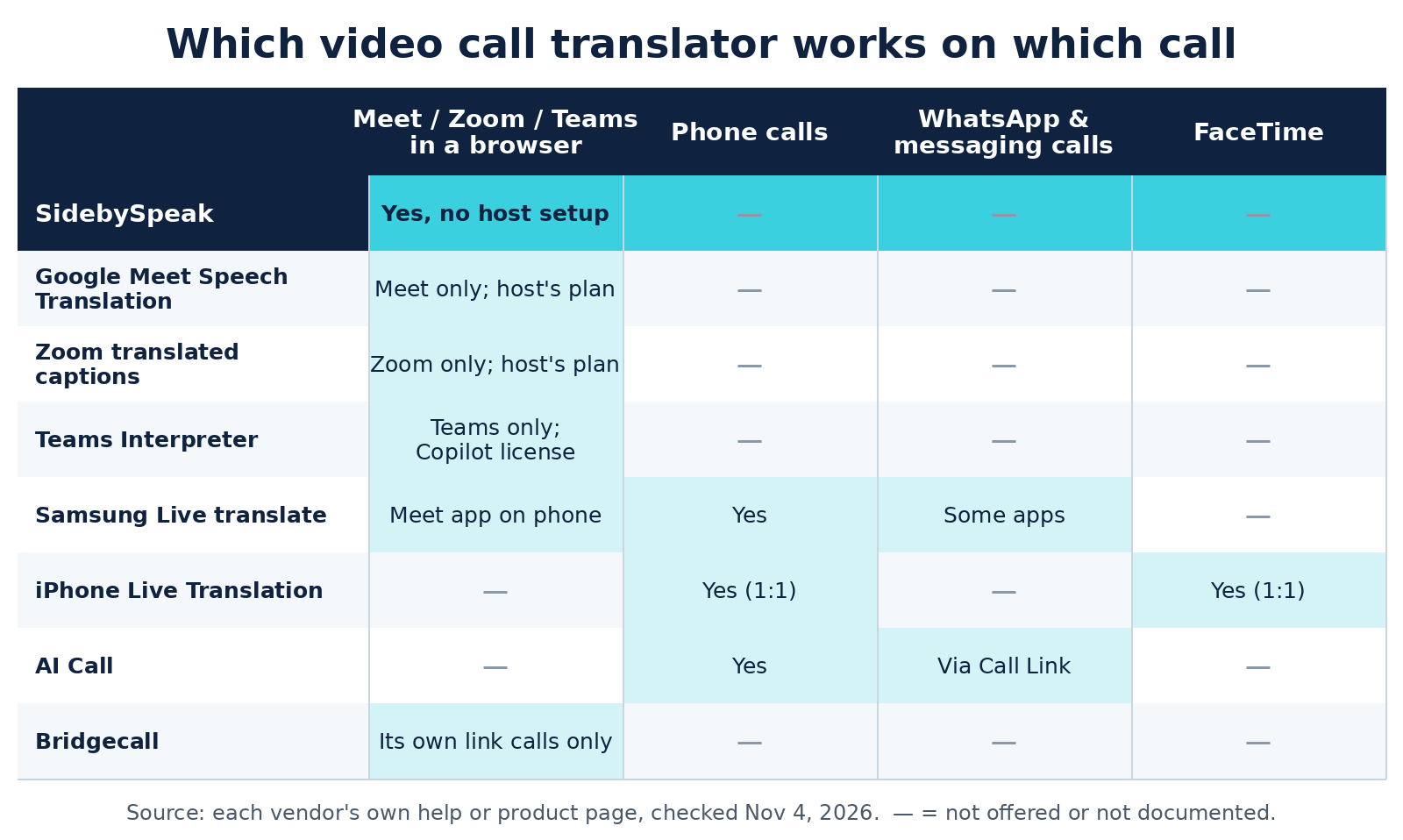
| Your call | Good pick | Why |
|---|---|---|
| Zoom, Google Meet or Teams in a browser | SidebySpeak | Runs on your side: no bot, no host plan, translates your voice too, 60 languages |
| A meeting where the host already pays for translation | The platform's built-in feature | Already included in the host's plan |
| A regular phone call | Samsung Live translate, iPhone Live Translation or AI Call | Built into the phone or dialer |
| WhatsApp and other messaging calls | Samsung Live translate or AI Call | Samsung works inside the app; AI Call uses a shared link |
| FaceTime | iPhone Live Translation | Built into FaceTime for 1:1 calls |
How we evaluated
We checked each vendor's own pricing, help and product pages, app store listings and setup docs on November 4, 2026. For every tool we compared five things:
- which calls it works on
- who has to set it up (you, the host or an admin)
- whether a bot joins the call
- whether your own voice gets translated
- the month-to-month price
Two of those matter most in practice. Who sets it up decides whether you can use the tool at all when you're a guest on someone else's call. Whether a bot joins decides whether everyone else on the call sees it.
1. Browser meetings: Zoom, Google Meet and Teams
Most work calls happen here. Because the meeting plays in a browser tab, an extension can hear it directly, with no bot and no help from the host. SidebySpeak was built for exactly this.
SidebySpeak: good for Zoom, Meet and Teams calls in your browser
SidebySpeak captures the meeting tab and, if you choose, your microphone. It shows both languages side by side in a caption window that only you see. The translation direction switches automatically, so whoever speaks either language is covered.
- No bot: "no bot or extra participant joins your call," and nobody else installs anything. To share captions, you can send an end-to-end encrypted live link without adding anyone to the meeting (FAQ).
- Your voice too: turn on Microphone and SidebySpeak translates what you say as well as the meeting audio (Zoom setup).
- How it works: Soniox handles real-time speech recognition and translation for all 60 supported languages, on every plan. OpenAI handles only the optional text features, such as recaps and Learn mode, and never receives meeting audio.
- Privacy: SidebySpeak never sells audio or saves recordings, and saved transcripts stay on your device. Soniox says its real-time API doesn't keep audio or transcripts or use them for training (FAQ).
- Beyond meetings: it works on any Chrome tab that plays audio, including webinars, lectures and videos.
- Pricing: Free gives you 20 minutes every month with no card. Basic is $9.99/month for 600 minutes, Pro $19.99 for 1,500, Power $39.99 for 4,200 and Max $79.99 for 9,600. Unused minutes roll over. Team plans share one minute pool from $79.99/month, with no per-seat fees (pricing).
- Limits: it shows text only and never sends a translated voice into the meeting. It also hears browser tabs only. If you use the Zoom or Teams desktop app, join from the browser instead (SidebySpeak vs Zoom captions).
Add SidebySpeak to Chrome or Edge. Setup guides: Zoom, Google Meet, Teams.
Other extensions and bots
The other tools fall into two groups. Trippi and MeeLang are personal extensions like SidebySpeak. Maestra and Talo send a bot or app into the call, which makes sense when you host and want the whole room to hear a translated voice.
- Trippi is good for a private subtitle overlay on free and personal accounts. It shows translated captions of the meeting on Google Meet, Zoom and Teams on the web, with no bot, and says "your audio stays private." On the Monthly toggle, Lite is $10/month for 10 hours, Pro $20 for 25 hours, Power $40 for 70 hours and Max $80 for 160 hours. Paid plans add a transcript and summary (gettrippi.app).
- MeeLang is good for Meet plus YouTube. It translates your speech as well as the call's, and pauses your mic when you mute in Meet. It supports 30+ target languages, claims sub-second latency and keeps meeting content on your device (MeeLang). Pro is $9.99/month for 600 minutes.
- Maestra Meetings is good for hosts who want recordings and translated audio for attendees. On Google Meet, a "Maestra Bot" joins like a guest, and someone has to admit it (Maestra help). On Zoom, the host runs it as a Marketplace app (Maestra). It costs $49/user/month billed monthly, with sessions up to 75 minutes and 2 languages per session (pricing).
- Talo is good for spoken translation on sales calls and events. A single AI bot joins and translates every participant, in 60 languages (taloai.com). Pro is $100/month for 400 minutes, with a 7-day trial (pricing).
| Tool | Bot joins? | Who sets it up | Translates your voice | Languages | Month-to-month price |
|---|---|---|---|---|---|
| SidebySpeak | No | Just you | Yes (optional mic) | 60 | Free 20 min/month; Basic $9.99/month for 600 min |
| Trippi | No | Just you | Meeting audio only | Tuned for common pairs (e.g. English–Spanish, German, Russian) | Free 20 min/month; Lite $10/month for 10 hours |
| MeeLang | No | Just you | Yes | 30+ | Free 30 min/month; Pro $9.99/month for 600 min |
| Maestra Meetings | Yes on Meet; Marketplace app on Zoom | Host | Yes, as translated audio | 2 per session | $49/user/month |
| Talo | Yes | Host | Yes, as translated voice | 60 | Pro $100/month for 400 min |
For a deeper comparison, see the best real-time meeting translation tools and Chrome extensions that translate live meeting captions.
2. Built-in meeting-platform translation
Extensions run on your side. The other route is translation built into the platform itself. It needs no install, but the host's plan or each listener's license decides whether you get it.
- Google Meet Speech Translation is good for Workspace teams. It translates speech in a voice like the speaker's, in 63 languages, using Gemini, and detects languages automatically. Google says it "does not store voice data or train models on your voice" (Workspace Updates, Oct 22, 2026). In scheduled meetings, the host needs an eligible plan. Google AI Pro allows 90 minutes per meeting and Ultra allows 8 hours, and translations run "a few seconds delayed for completeness" (Meet Help).
- Zoom translated captions are good for teams already on Business Plus or Enterprise, or anyone who buys the add-on. Each participant picks their own caption language. It's captions only, with no translated voice (Zoom Support). Zoom's blog prices the add-on at $5/month per user (Zoom blog).
- Teams Interpreter is good for Microsoft 365 companies with Copilot. Each listener needs a Copilot license, which includes 20 hours of interpretation a month. It supports 9 languages, including English, Spanish, French, German and Japanese. A bot sends the meeting audio to Azure for speech-to-speech translation, and Microsoft says voice samples are never stored. It doesn't work on Teams free or on phone (PSTN) calls (Microsoft Learn; Microsoft Support).
| Option | What you need | Who turns it on | Translates your voice | Extra cost |
|---|---|---|---|---|
| SidebySpeak | Chrome or Edge | You | Yes, as captions | Free 20 min/month; from $9.99/month |
| Google Meet Speech Translation | Host on an eligible Workspace or Google AI plan | Host's plan (on by default for eligible editions) | Yes, as a translated voice | Included in eligible plans |
| Zoom translated captions | Business Plus/Enterprise, or the add-on | Host or account admin | Captions only | $5/month per user add-on |
| Teams Interpreter | Copilot license for each listener | Each listener | Yes, speech-to-speech | Copilot license; 20 hours/month included |
The pattern is the same on all three: if you're a guest on someone else's call, you usually can't switch these on yourself. SidebySpeak works whatever plan the host has, which is why it's the default pick for browser meetings. For a closer look at Zoom, see our Zoom translated captions comparison.
3. Phone calls
Phone calls leave the browser entirely. SidebySpeak covers browser meetings, not phone or WhatsApp calls, so here the translator has to sit in the phone itself.
- Samsung Live translate is good for Galaxy owners. It needs Android 14 with One UI 6.1 or later. Turn it on in Settings > Galaxy AI > Call assist > Live translate, then tap Call assist during a call (Samsung).
- iPhone Live Translation is good for iPhone 15 Pro and newer. It works on 1:1 calls in 10 languages: English, French, German, Italian, Japanese, Korean, Portuguese (Brazil), Spanish (Spain), and Simplified and Traditional Chinese. Both callers hear a spoken translation, and Apple's models run "entirely on device." Both sides get an alert that the call is being translated (Apple Support).
- AI Call is good when your phone lacks a built-in option. It dials any mobile, landline or VoIP number with two-way translation, and the person you call needs no app (1aicall.com). The first call is free, up to 2 minutes. After that, its App Store listing shows a weekly plan at $6.99 and credit packs from $6.99 for 100 credits (App Store).
| Option | Works on | Translates your voice | Price |
|---|---|---|---|
| Samsung Live translate | Galaxy dialer, One UI 6.1+ | Yes, spoken | Free on supported Galaxy phones |
| iPhone Live Translation | Phone app, 1:1, iPhone 15 Pro or later | Yes, spoken and text | Built in |
| AI Call | Any mobile, landline or VoIP number | Yes, spoken | First call free; $6.99/week in-app |
4. WhatsApp, FaceTime and other mobile calls
Messaging calls are the hardest case, because each app keeps its own audio to itself. Only a few options reach inside them, so check your exact app before you rely on one.
- Samsung Live translate goes furthest. Samsung lists WhatsApp, Messenger, Instagram, Signal, Line, WeChat, Telegram, Google Meet and KakaoTalk (Samsung).
- iPhone Live Translation covers FaceTime. It shows translated captions on 1:1 FaceTime calls in the same 10 languages. Apple lists it only for Phone, FaceTime and Messages, so it won't translate WhatsApp calls (Apple Support).
- AI Call works around the problem. It "does not add an overlay to an existing WhatsApp or FaceTime call." Instead, you send a Call Link through WhatsApp, iMessage or another app, and the other person joins a translated call in their browser (1aicall.com).
- Bridgecall works the same way and is good for family calls. You share a link, up to 5 people join in a browser, and everyone gets translated voice and subtitles in 50+ languages. It costs 15 free minutes, then Light at $15/month for 100 minutes (bridgecall.app).
| Option | WhatsApp & messaging apps | FaceTime | Price |
|---|---|---|---|
| Samsung Live translate | Inside WhatsApp, Messenger, Signal, Telegram and more | No (Galaxy only) | Free on supported Galaxy phones |
| iPhone Live Translation | No (Phone, FaceTime and Messages only) | Yes, translated captions on 1:1 calls | Built in |
| AI Call | Via a shared Call Link | Via a shared Call Link, not inside FaceTime | First call free; $6.99/week in-app |
| Bridgecall | Via its own link calls | No | 15 free min; Light $15/month for 100 min |
How to use a translator in a video call (Zoom, Meet or Teams)
Most readers land here for a work meeting, so here's the browser setup:
- Install SidebySpeak in Chrome or Edge, then sign up free. No card needed.
- Join your meeting in a browser tab, not the desktop app.
- Click SidebySpeak in the Extensions menu and pick your two languages.
- Turn on Microphone if you want your own words translated.
- Press Start. Bilingual captions appear in a window you can move and resize.
For a Spanish call walkthrough, see translate a Spanish to English conversation for free. For videos outside meetings, see live caption translate.
Who should pick what
- You join Zoom, Meet or Teams in a browser, as host or guest: SidebySpeak. Start with 20 free minutes.
- You host and want the room to hear a translated voice: Google Meet Speech Translation or Teams Interpreter if your plan includes them. Otherwise, Talo or Maestra.
- Phone calls: your phone's built-in Live Translation, or AI Call.
- WhatsApp: Samsung Live translate, or a link-based app like AI Call or Bridgecall.
- FaceTime: iPhone Live Translation.
FAQ
How do I use a translator in a video call? Install a caption-translation extension like SidebySpeak, join the call in Chrome or Edge, pick your languages and press Start. Translated captions appear live, with no bot and no host setup.
What is the best video call translator for Zoom, Google Meet and Teams? SidebySpeak, if you join in a browser. It works on all three whatever the host's plan, covers 60 languages and costs from $9.99/month after 20 free minutes each month.
Is there a free video call translator? Yes. SidebySpeak's free plan gives you 20 minutes every month. Samsung's and Apple's call translation are built into supported phones at no extra cost.
Is there live translation on FaceTime? Yes. On an iPhone 15 Pro or later, Live Translation shows translated captions on 1:1 FaceTime calls in 10 languages, processed on device.
Is there a way to translate live phone calls? Yes. Use Samsung Live translate on supported Galaxy phones, Live Translation in the iPhone Phone app, or a dialer app like AI Call.
Can I translate WhatsApp video calls? Yes, on a Galaxy phone with Samsung Live translate. On iPhone, use a link-based app like AI Call or Bridgecall instead. SidebySpeak doesn't cover WhatsApp.
Does the other person need to install anything? Not with SidebySpeak. It runs only on your side, and you can share your translated captions through an encrypted live link.