 SidebySpeak
 Blog
Live Caption Translate: How to Turn On Translated Captions in Chrome, Windows and Android
Step-by-step: turn on translated live captions in Chrome, Windows 11 and Android, and see what to use when you need Zoom, Google Meet or Teams calls translated both ways.
Live caption translate works on three built-in tools. In Chrome, go to More > Settings > Accessibility and turn on Live Caption and Live Translate. On Windows 11, press Windows key + Ctrl + L (translation needs a Copilot+ PC). On a Pixel 6 or newer, press a volume button and tap Live Caption. For Zoom, Meet or Teams calls where your own voice should be translated too, use SidebySpeak.
Live caption translation means your device turns speech into captions as it plays, then translates those captions into your language.
Every menu path below comes from Google's and Microsoft's own help pages, checked November 3, 2026. Menus can vary by version and device.
Which device supports what
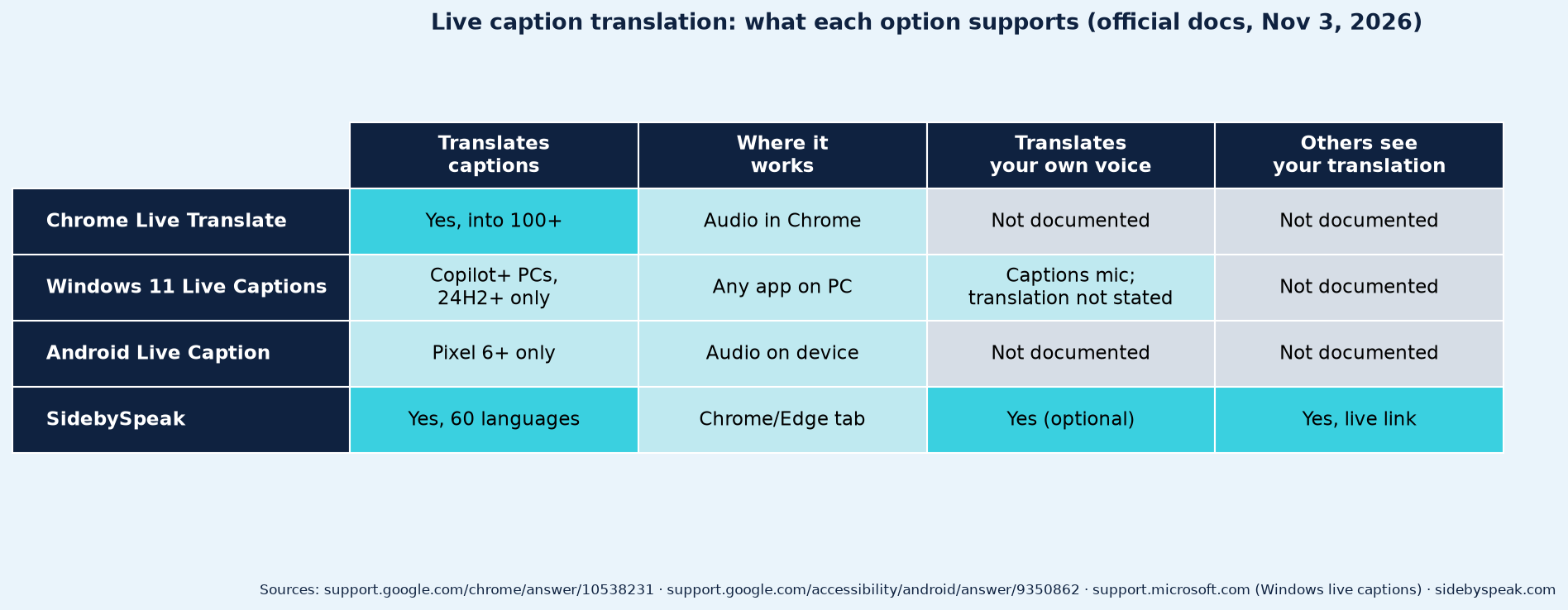
| Chrome | Windows 11 | Android | SidebySpeak | |
|---|---|---|---|---|
| Translates captions | Yes, into 100+ languages | Copilot+ PCs on 24H2+, into English or Simplified Chinese | Pixel 6+ (Live Translate) | Yes, 60 languages, either direction |
| Where it works | Audio playing in Chrome | Any audio on your PC | Audio on your device | Meeting or audio in a Chrome or Edge tab |
| Translates your own voice | Not documented | Can caption your mic; mic translation not documented | Not documented | Yes (optional) |
| Others can see your translation | Not documented | Not documented | Not documented | Yes, through an encrypted live link |
| Price | Free | Free | Free | Free 20 min/month; from $9.99/month |
How to use live caption translate in Chrome (Windows, Mac, Linux)
Chrome generates captions for "videos, podcasts, games, live streams, video calls, or other audio media" and can send them to Google to translate (Chrome Help).
Windows or Mac:
- Open Chrome.
- At the top right, select More > Settings > Accessibility.
- Turn on Live Caption.
- Turn on Live Translate.
- Next to "Translate to," pick your language.
Linux: same, but after Accessibility select Captions first.
To caption a language other than English: next to "Manage languages," select Add languages (Chrome downloads the language pack), then choose it under "Preferred caption language."
Chrome translates from its supported Live Caption languages, including English, Spanish, French, German, Japanese, Korean, Hindi, Portuguese and Chinese, into over 100 languages. Once Live Caption is on, translation shows in a draggable caption bubble.
Chromebook: open Settings, select Accessibility > Audio and captions, turn on Live Caption, add the source language under "Supported Live Caption languages," turn on Live Translate, and set "Translate captions to." Google notes it uses more power, so plug in.
Captioning runs on your device. Live Translate sends the captions to Google for translation.
How to turn on live captions translation in Windows 11
Windows 11 Live Captions caption "any audio that passes through your PC," in any app (Microsoft Support).
- Press Windows key + Ctrl + L. Or go to Settings > Accessibility > Captions and turn on Live captions. It's also in Quick settings and Start > All apps > Accessibility.
- The first time, agree to on-device processing and download the language files.
- On a Copilot+ PC, translation appears automatically when the output language is English (United States) or Chinese (Simplified).
What you need: Live captions needs Windows 11 version 22H2 or later. Translation needs a Copilot+ PC on version 24H2 or later. It translates from over 40 languages into English and 27 into Chinese (Simplified).
Your own voice: in the Live captions window, select Settings > Preferences and turn on Include microphone audio. Microsoft notes that sound audio wins when you talk over someone, so you'll see their captions, not yours.
Everything stays on your PC. If you use a headset and nothing is captioned, check your default output device in Settings > System > Sound.
How to use Live Caption and Live Translate on Android
Live Caption captions speech in videos, podcasts, phone calls, video calls and audio messages (Android Accessibility Help).
- Press a volume button.
- Under the volume controls, tap More > Live Caption > Done. If you don't see it, search "Live Caption" in Settings.
To translate captions:
- Open Settings > Accessibility > Live Caption.
- Tap Languages & translation and add a language.
- Under "Preferred language," tap Translate captions to your preferred language and choose Ask to translate, Automatically translate or Don't translate.
Google says translating captions needs the Live Translate feature, "only available on Pixel 6+ devices." Steps vary by phone, and the first language pack downloads over Wi-Fi. Live Caption isn't meant for calls with more than one other person, and captions may be unavailable in some calling apps.
Why built-in live captions fall short in meetings
- Only you see them. Each tool shows captions on your own screen. None of the help pages describe sharing your translation with others.
- Your voice isn't translated for the other side. Windows can caption your mic, and Chrome and Android don't document mic translation at all. Nothing sends your words, translated, to the person you're talking to.
- Hardware and language limits. Windows translation needs a Copilot+ PC and outputs only English or Chinese. Android translation needs a Pixel 6 or newer.
- Meeting apps charge extra. Translated captions built into Google Meet and Teams need specific paid plans or licenses (Meet, Teams).
How to translate captions in Zoom, Google Meet and Teams calls
SidebySpeak gives you live translated captions in Zoom, Google Meet and Microsoft Teams in your browser, and translates what you say, too.
- Two languages side by side. Captions for the call and your microphone, translated in either direction between your chosen languages.
- Your voice translated. Turn on your mic and the other side can follow you through an encrypted live link. The mic is optional.
- No bot, no host setup. No bot joins your call, so it works on anyone's meeting link.
- 60 languages, one price. Every plan has the full catalog. Free gives you 20 minutes a month, no card. Basic is $9.99 a month for 600 minutes, and Pro is $19.99 a month for 1,500 minutes (pricing).
- Transcripts stay with you. Save bilingual transcripts locally or email them, with an optional AI recap.
It hears audio playing in a Chrome or Edge tab, so join Zoom from the browser rather than the desktop app. It shows text captions only.
Setup guides: Zoom · Google Meet · Microsoft Teams. Comparing Zoom's own option? See Zoom translated captions vs SidebySpeak. For other tools, see our roundup of Chrome extensions that translate meeting captions. Learning a language from videos instead? Try subtitles for language learning.
Add SidebySpeak to Chrome · Start free with 20 minutes a month
Which one should you use?
- Videos and streams in Chrome: Chrome Live Caption with Live Translate.
- Any app on a Copilot+ PC, into English or Chinese: Windows 11 Live Captions.
- Media on a Pixel 6 or newer: Android Live Caption with Live Translate.
- Zoom, Meet or Teams calls, both ways: SidebySpeak.
FAQ
How do I turn on live caption translate in Chrome?
Open Chrome, select More > Settings > Accessibility, turn on Live Caption and Live Translate, then pick a language next to "Translate to." On Linux, select Captions first.
Can live captions translate to English?
Yes. Chrome translates supported caption languages into English and 100+ others. Windows 11 translates 40+ languages into English on Copilot+ PCs. Pixel 6+ phones translate with Live Translate.
Does Windows 11 Live Captions translate?
Yes, but only on Copilot+ PCs running Windows 11 version 24H2 or later, and only into English (United States) or Chinese (Simplified).
Why don't I see Live Translate on my Android phone?
Google says caption translation is only available on Pixel 6 and newer. Other phones may have Live Caption without translation. Check with your manufacturer.
Is there a live caption extension for Zoom, Meet and Teams?
Yes. SidebySpeak is a Chrome and Edge extension that translates captions in Zoom, Google Meet and Teams in the browser, plus your own mic.
Do built-in live captions translate what I say to the other person?
No such feature is documented. Built-in captions show on your screen only. SidebySpeak translates your voice and shares it through a live link.
Is live caption translate free?
Chrome, Windows and Android captions are free. SidebySpeak is free for 20 minutes a month, then from $9.99 a month.
Sources (checked November 3, 2026)
- https://support.google.com/chrome/answer/10538231?hl=en (Chrome Live Caption / Live Translate)
- https://support.microsoft.com/en-us/windows/use-live-captions-to-better-understand-audio-b52da59c-14b8-4031-aeeb-f6a47e6055df (Windows 11 live captions)
- https://support.google.com/accessibility/android/answer/9350862?hl=en (Android Live Caption)
- https://sidebyspeak.com/pricing (live, Nov 3, 2026)
- https://support.google.com/meet/answer/10964115 and Teams live captions page (from brand file, checked Oct 31, 2026)
- SidebySpeak features: /workspace/content/brand/sidebyspeak.md (site checked Oct 31, 2026)