 SidebySpeak
SidebySpeak Blog
6 Best Translation Extensions for Chrome by Use Case
A good translation extension Chrome supports should translate text where you read it, cover your language pair, and cost nothing for light use. For free, quick page translation, pick Google Translate....
A good translation extension Chrome supports should translate text where you read it, cover your language pair, and cost nothing for light use. For free, quick page translation, pick Google Translate. For accuracy on work text, pick DeepL. For reading practice and bilingual subtitles, pick Immersive Translate. If the foreign language is spoken in a video meeting rather than written on a page, pick SidebySpeak.
The problem is familiar. You click a link, the page loads in a language you cannot read, and you either paste text into another tab or give up. Extensions fix that, but they do different jobs. Installing three at once also makes them fight over the same right-click menu.
This guide covers six extensions, grouped by what they actually translate: live speech, whole pages, selected text, side-by-side reading and short phrases. It ends with a comparison table, install steps and a simple way to choose. SidebySpeak is our own tool, so we list it first and say plainly where it does not apply.
1. SidebySpeak
What it does
SidebySpeak is a Chrome and Edge extension that captions and translates live meeting audio. It does not translate web pages, so treat it as the pick for spoken language. It listens to the browser tab, and to your own microphone if you turn that on, then shows the original speech beside the translation on Google Meet, Zoom, Microsoft Teams and other browser calls.
A page translator reads text, while SidebySpeak handles speech, which is a different job.
- 60 languages, including English, Spanish, Hindi, Korean, Japanese, Arabic and Swahili.
- Transcripts of the original speech and the translation that you can save, download or email to yourself.
- Optional Learn mode, which highlights matching words between speech and translation and can generate AI flashcards.
You create a free account, install the extension, sign in and press Start on a browser call. No meeting bot joins the call, so nothing appears for other participants to approve. Live audio goes to the speech provider Soniox, which states that it does not retain real-time audio or use it for training. Saved transcripts stay in your browser profile, and SidebySpeak stores no audio recordings.
Who it suits and what it costs
Professionals, remote workers and expats who sit in calls held in a language they only half speak get the most from it. Language learners can add Learn mode to study vocabulary from real conversations. Every plan includes the full language list, tab and optional microphone captions, transcripts and Learn mode, so plans differ only by minutes.
| Plan | Price | Live minutes per month |
|---|---|---|
| Free | $0 | 20 |
| Basic | $9.99 | 600 (10 hours) |
| Pro | $20 | 1,500 (25 hours) |
| Power | $30 | 3,000 (50 hours) |
| Team plans | from $80 | One shared pool, no per-seat fees |
Usage is metered per minute of live call, and tab plus microphone together count as one minute. Say you sit in three one-hour calls a week. That is about 13 hours a month, which is past Basic's 10 hours, so Pro at $20 fits. The free 20 minutes cover roughly one short call, enough to test your language pair. Paid plans can also buy top-up minutes that never expire.
2. Google Translate
What it does
Google Translate is the safest first install if you want a translation extension for Chrome that just works. It handles the two jobs most people need, translating a full page and translating a highlighted passage.
If you install only one extension, make it this one, and add a second only when it falls short.
- Whole page: click the toolbar icon and the page switches to your language.
- Selected text: highlight a passage or right-click, then click the small Translate icon.
- Automatic language detection, so you do not need to know what you are reading.
- A speaker button that reads the translation aloud.
Who it suits and what it costs
It is free and has no paid tier. It suits casual readers: news sites, product reviews, restaurant menus and forum threads. English to Hindi and English to Spanish both work, since Google Translate covers those languages.
Its weak spot is nuance. Treat the output as a reliable gist, and for contracts, medical or legal text, have a fluent person check the wording. Idioms and formal registers are where machine translation slips first.
3. DeepL
What it does
DeepL is the pick when translation quality matters more than speed. The Chrome extension translates web pages and selected text, and it adds writing suggestions. It also works inside Google Docs, Slides and Gmail, so you can translate a draft email without leaving the tab.
DeepL earns its place when the wording of the result will be read by someone else.
- Translates web pages and highlighted text in the browser.
- Works inside Google Docs, Slides and Gmail.
- Produces natural-sounding output because it reads the whole sentence, not word by word.
Who it suits and what it costs
Professionals, academics and students translating work email, papers or reports get the most from DeepL. It is free for everyday tasks, and a paid Pro plan removes the limits for heavy users. At publication, Pro was listed from $10.49 a month.
Its language list is shorter than Google's, so check that your pair is supported before you install. If you translate rare languages, you will likely need a second tool.
4. Immersive Translate
What it does

Immersive Translate shows the original and the translation side by side, paragraph by paragraph. That makes it a reading tool as much as a translator. You see the source text, glance at the translation, and learn the language as you browse.
Showing both languages at once turns every foreign page into a study session.
- Bilingual page view with original and translated text together.
- Dual-language subtitles on YouTube and Netflix.
- Support for reading PDFs and eBooks in another language.
Who it suits and what it costs
Language learners and heavy foreign-language readers are the target. If you search for a Chrome translation extension that handles video, this is the one to try first. A free version lets you test the bilingual view, and paid plans were listed from $9.99 a month.
If you only need a one-off translation of a menu or news story, the side-by-side layout is more than you need. Pick Google Translate for that.
5. ImTranslator
What it does
ImTranslator runs your text through several translation engines and shows the results together, including Google and Microsoft. Instead of trusting one answer, you compare them.
When two engines disagree on a sentence, read that sentence twice before you trust either.
- Side-by-side results from more than one engine.
- Translation of a single word, a selected sentence or a full page.
- A built-in dictionary, text-to-speech and a history of recent translations.
Who it suits and what it costs
Writers, researchers and anyone who has been burned by an odd translation will like the second opinion. It is free. It works through a pop-up window rather than inline on the page, which feels slower for casual reading.
It is also a handy cross-check for an extension you already use. Paste a tricky sentence into ImTranslator and see whether the engines agree.
6. Mate Translate
What it does
Mate Translate is a clean, lightweight translator for words and short passages. You can highlight text or translate a full page, and the interface stays out of your way.
Mate Translate is for quick lookups and vocabulary, not for long documents.
- Page and selected-text translation.
- A personal phrasebook for saving phrases you want to remember.
- Synonyms and pronunciation help.
- Sync of saved items across your devices.
Who it suits and what it costs
Learners and everyday users who value clean design and want to build a phrase list will enjoy it. It is free to start, and Pro was listed at $5.99 a month, with a 50% student discount. Accuracy can slip on long passages, so keep it for short text and use DeepL when the stakes are higher.
How to choose, install and turn on translation
Side-by-side comparison
Choose by what you translate, not by popularity. The table sets the six picks next to each other. Paid prices change, so check the current page before you subscribe.
| Extension | Best for | Translates | Cost |
|---|---|---|---|
| SidebySpeak | Live meetings | Spoken audio on browser calls | Free 20 minutes a month, paid from $9.99 |
| Google Translate | Everyday reading | Pages and selected text | Free |
| DeepL | Accuracy | Pages, text, Docs and Gmail | Free tier, paid Pro |
| Immersive Translate | Learning and video | Bilingual pages, subtitles, PDFs | Free tier, paid from $9.99 |
| ImTranslator | Cross-checking | Words, text and pages | Free |
| Mate Translate | Short phrases | Pages and selected text | Free tier, Pro $5.99 |
How to install and turn on translation
Installing a browser extension is quick.
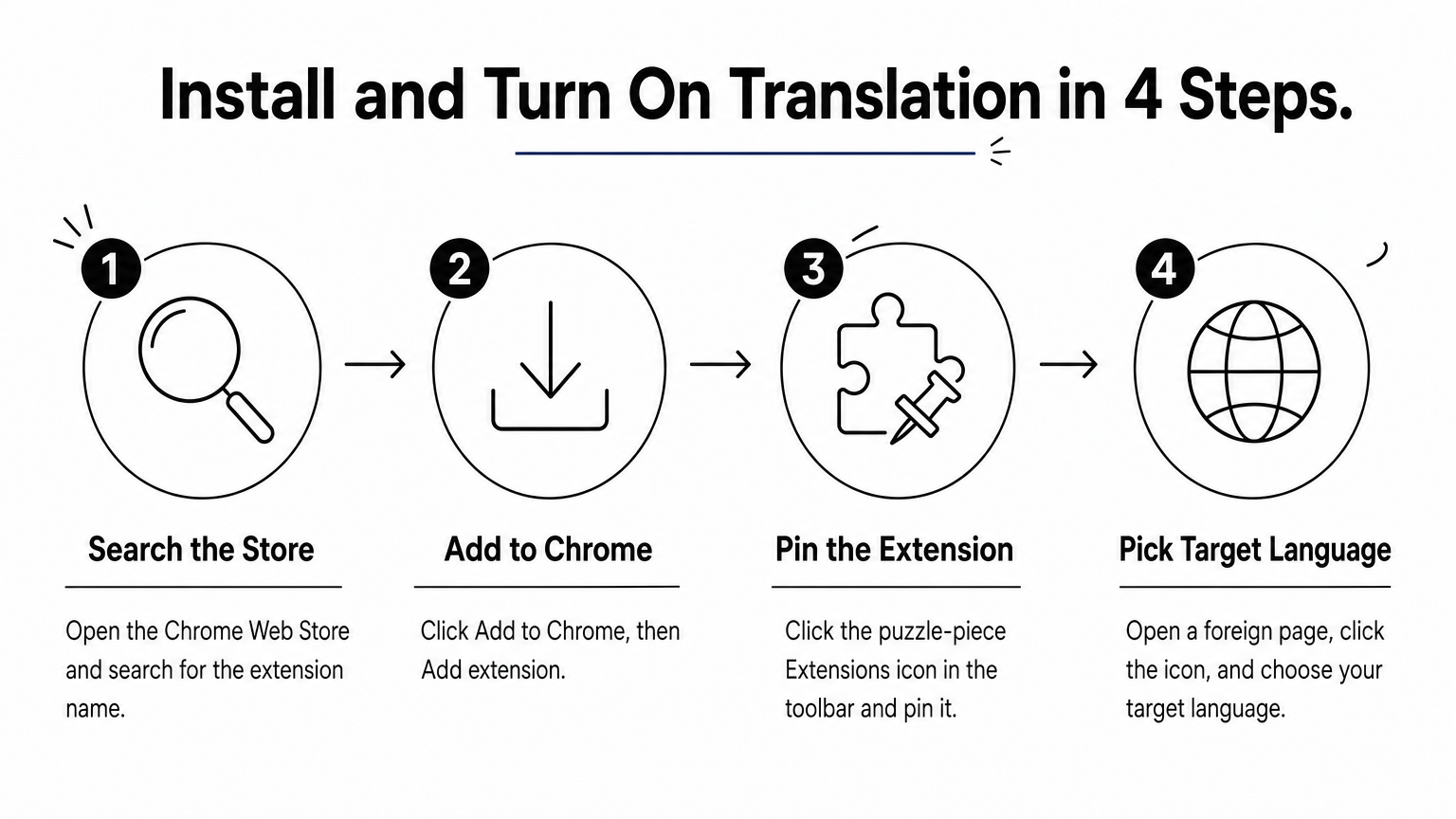
- Open the Chrome Web Store and search for the extension name. SidebySpeak is installed from its ZIP download instead.
- Click Add to Chrome, then Add extension.
- Click the puzzle-piece Extensions icon in the toolbar and pin the extension.
- Open a foreign page, click the icon or highlight text, and choose your target language.
Chrome can also translate without any extension. When it detects another language, a Translate icon appears at the right end of the address bar, and you can right-click the page too. Choose the "Always translate" option for that language and later visits translate automatically. Run one extension at a time, because two active translators can show competing pop-ups.
Which one to pick
Start with what you need to translate: text you read, speech you hear, or language you want to study. Then check that your language pair is listed, such as English to Hindi or English to Spanish. Both Google Translate and SidebySpeak list those two. Last, match the price to how often you will use it.
Chrome on Android does not run desktop extensions. On a phone, use Chrome's built-in translate option instead.
Choose by the job, not the brand: one extension per job, and never two for the same one.
Pick one and start with a short test
The best translation extension for Chrome depends on what you translate. Google Translate covers casual page and text translation for free, DeepL covers accuracy, Immersive Translate covers study and video, ImTranslator gives you a second opinion, and Mate Translate handles short phrases. None of them helps when the language is spoken live in a meeting.
For that, SidebySpeak adds live captions and translation to Google Meet, Zoom and Microsoft Teams with no bot joining the call. You can try SidebySpeak free with 20 minutes each month, no card required, and see whether it follows your next real conversation. Install one extension, test it on a page or call you actually need, and keep it only if it saves you time.