 SidebySpeak
SidebySpeak Blog
Teams Meeting Transcription: How to Turn It On and Save It
To use Teams meeting transcription, you need a work or school Microsoft 365 account on a plan that includes it, plus an admin policy that allows it. Then select More in the meeting, choose Record and...
To use Teams meeting transcription, you need a work or school Microsoft 365 account on a plan that includes it, plus an admin policy that allows it. Then select More in the meeting, choose Record and transcribe, and select Start transcription. Afterward, open the meeting chat, go to Recap, then Transcript, and download the file as .docx or .vtt.
The problem is that the option often is not where you expect it. Teams does not transcribe meetings on its own in most setups. The menu item disappears if an admin has switched it off, and guests in someone else's meeting usually cannot start it at all. You join the call, find nothing in the menu, and the discussion goes unrecorded.
This guide covers the requirements, the exact clicks to start and stop transcription, and how to find and download the transcript afterward. The last section covers what to do when Teams will not transcribe for you. SidebySpeak builds a browser extension for live captions and translation on calls, so that section covers that route too.
What Teams needs before it can transcribe
Teams can transcribe meetings, but it does not do so by default. Whether it works for you depends on your account, your admin's policy, and your role in the meeting.
Does Teams transcribe meetings automatically?
No, not unless someone sets it up. Someone has to start transcription during the meeting, unless the organizer set the meeting to record and transcribe automatically and your organization offers that option. If transcription never runs, nothing is saved. Live captions are a separate feature, and they vanish when the meeting ends.
Requirements checklist
Check these four items before the meeting:
- A work or school account on a Microsoft 365 or Office 365 plan that includes transcription. Ask your admin to confirm your plan.
- Transcription allowed in your Teams meeting policy.
- A role that can start it. That means the organizer, a co-organizer, or a member of the organizer's organization whom the policy permits. Guests from other organizations cannot.
- A supported spoken language selected for the meeting.
If the menu item is missing, the cause is almost always your role or your admin's policy, not your device.
Transcription versus live captions
People mix these up, so here is the difference.

| Live captions | Transcription | |
|---|---|---|
| Saved after the meeting | No | Yes |
| Visible to | Only the person who turned them on | Everyone in the meeting |
| Who turns it on | Any participant, if the admin allows | Organizer or permitted members of its organization |
| Output | None | .docx or .vtt file |
This also answers the common question about transcribing "only for me." Teams cannot do that. Transcription is meeting-wide, and only captions are personal.
Step 1. Set the spoken language first
Set the spoken language before you start transcription. Teams transcribes in the language you select and does not detect it. If you leave the wrong language selected, you get unusable text.
Choose the language before you start
In the meeting, select More, then Language and speech, then Change spoken language. Pick the language people will mainly speak and confirm. The setting applies to the whole meeting, so tell participants if you change it. In a meeting that mixes two languages, choose the main one. Speech in the other language will come out garbled.
Check the meeting options ahead of time
If you are the organizer, open the meeting in your Calendar and select Meeting options. Look for a toggle that records and transcribes automatically. If you see it, you can skip the manual start. If the toggle is missing, your admin has not enabled it, and you will start transcription by hand.
Pick the spoken language before you press Start, because Teams will not correct it for you.
Step 2. Start transcription in the meeting
Starting transcription takes three clicks once you are in the meeting. Do it early, because Teams only captures speech from the moment you start.
Turn it on
- Join the meeting and select More (the three dots) in the toolbar.
- Select Record and transcribe.
- Select Start transcription.
Everyone sees a notice that transcription has started, and a transcript panel opens with speaker names and timestamps. You do not need to record the video. Choosing only Start transcription gives you a transcript without a recording. To stop, open the same menu and select Stop transcription. It also stops when the meeting ends.
What to do if the option is missing
First, ask the organizer to start it. If you are the organizer and still see nothing, your admin may have blocked it. An admin can check the policy in PowerShell with the Teams module:

Get-CsTeamsMeetingPolicy -Identity Global | Select-Object AllowTranscription
Set-CsTeamsMeetingPolicy -Identity Global -AllowTranscription $true
Your organization may use a policy other than Global, so have the admin check which one is assigned to you. Policy changes can take a while to reach users.
Never promise a transcript in a meeting until you have seen the Start transcription button yourself.
Step 3. Find and download the transcript
The transcript lives in the meeting's Recap tab. Open it from the meeting chat, and download it from there.
Open the transcript after the meeting
- Select Chat in Teams and open the past meeting chat.
- Select Recap.
- Select Transcript.
- Select the dropdown arrow next to Download and choose a format.
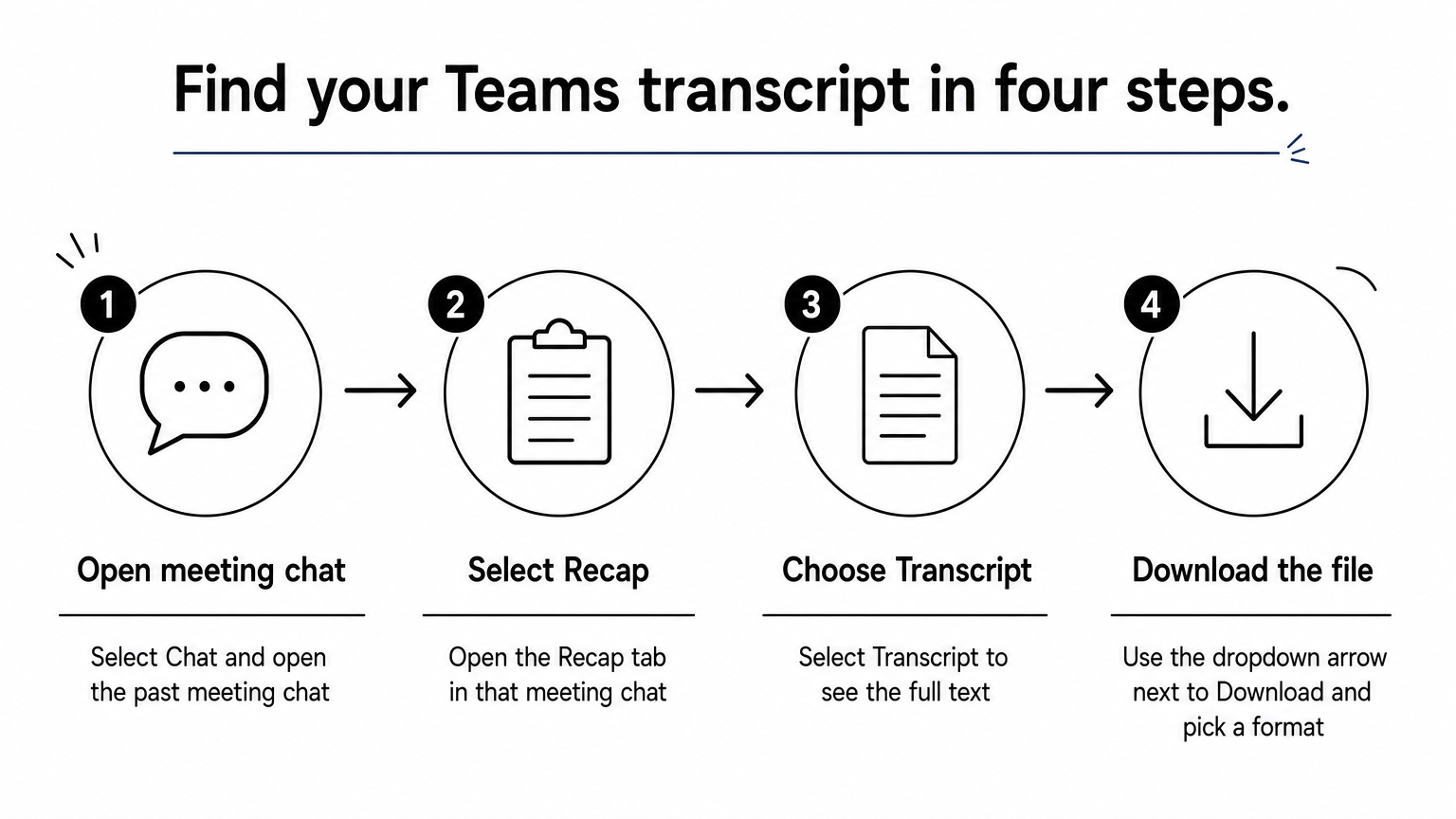
You can also open the meeting from your Calendar and find Recap there. A transcript can take a few minutes to appear after the meeting ends, so check again before assuming it failed.
Choose a file format
| Format | Best for |
|---|---|
| .docx | Reading, editing, and sharing as a normal document |
| .vtt | Timestamped text and caption files for video tools |
Who can download depends on the organizer's and admin's settings. If you attended but see no Download button, ask the organizer to download the file and share it.
The transcript is only a few clicks away in Recap, but the organizer's settings decide who gets the download button.
Extra. When Teams cannot transcribe for you
When Teams blocks transcription, you need a way to capture the meeting that does not depend on Teams permissions. A browser-based captioning tool is one option.
Common blocks
The usual reasons are that you are a guest in another organization's meeting, your admin disabled transcription, or your plan does not include it. A fourth reason is that you need the meeting in another language. Teams transcribes in the language spoken, so it will not give you a translated live view.
A browser option with SidebySpeak
SidebySpeak is a Chrome or Edge extension, so no bot joins the call. Join the Teams meeting in the browser, sign in to the extension, and press Start. It captions the tab audio, and optionally your microphone, in one of 60 languages. You can save, download, or email the transcript. Saved transcripts stay in your browser profile, not on SidebySpeak's servers.
Usage is metered per minute of live call. The free plan gives you 20 minutes a month with no card. A 45-minute weekly meeting uses about 180 minutes a month, or 3 hours, which fits the Basic plan ($9.99 a month for 10 hours). Note that this is not Teams' official record, and it needs the browser version of Teams. Tell participants you are capturing text. US recording consent rules differ by state, so check yours.
A browser tool covers the meetings where Teams will not, but it does not replace the official Teams transcript.
Ready to capture your next meeting?
Teams meeting transcription works when three things line up: a qualifying account, an admin policy that allows it, and a permitted person who starts it. Set the spoken language, choose Start transcription, then pick up the file from Recap and download it as .docx or .vtt.
When that chain breaks, you do not have to go without a record. If you are a guest, or you need live translation in another language, try SidebySpeak free on your next Teams call. Twenty free minutes a month is enough to see how it handles a real conversation.